ラベル Silverlight の投稿を表示しています。 すべての投稿を表示

2014年9月11日木曜日

[WPF][Silverlight][C#] ScrollViewer でマウスでの横スクロールと慣性スクロール

将来的に横スクロールにしたいという話があって、事前調査してみました。
やりたいことは下記3つ。
  1. マウスホイールで横スクロール
  2. ドラッグで横スクロール
  3. 慣性スクロール
あんまり情報ないですねー。とりあえずざくっとと作ってみたので、コードだけ紹介します。WPF版では ScrollViewer のカスタムコントロールで、Silverlight では ScrollViewer  を継承できないので Behavior で作りました。ほぼ同じようなコードになってます。加速度までは考慮していないのであしからず。

WPF版(Custom Control)
    /// <summary>
    /// 慣性スクロールビューア
    /// </summary>
    public class MomentumScrollViewer : ScrollViewer
    {
        #region インスタンスフィールド
        /// <summary>
        /// マウスオフセット位置
        /// </summary>
        private double mouseOffset;
        /// <summary>
        /// 開始位置
        /// </summary>
        private double startOffset;
        /// <summary>
        /// プレス有無
        /// </summary>
        private bool isPressed = false;
        /// <summary>
        /// 最終位置
        /// </summary>
        private double lastPosition;
        /// <summary>
        /// 移動量
        /// </summary>
        private double momentumValue;
        #endregion
        #region 依存プロパティ
        /// <summary>
        /// 運動量を取得または設定します。
        /// </summary>
        public double MomentumValue
        {
            get { return (double)GetValue(MomentumValueProperty); }
            set { SetValue(MomentumValueProperty, value); }
        }
        /// <summary>
        /// 運動量依存関係プロパティを識別します。
        /// </summary>
        public static readonly DependencyProperty MomentumValueProperty =
            DependencyProperty.Register("MomentumValue", typeof(double), typeof(MomentumScrollViewer), new PropertyMetadata(0.5));
        /// <summary>
        /// 水平位置を取得または設定します。
        /// </summary>
        public double HorizontalPosition
        {
            get { return (double)GetValue(HorizontalPositionProperty); }
            set { SetValue(HorizontalPositionProperty, value); }
        }
        /// <summary>
        /// 水平位置依存関係プロパティを識別します。
        /// </summary>
        public static readonly DependencyProperty HorizontalPositionProperty =
            DependencyProperty.Register("HorizontalPosition", typeof(double), typeof(MomentumScrollViewer), new FrameworkPropertyMetadata(0.0, new PropertyChangedCallback(OnHorizontalPositionChanged)));
        #endregion
        #region コンストラクタ
        /// <summary>
        /// コンストラクタ
        /// </summary>
        public MomentumScrollViewer()
        {
            // 各イベント登録
            this.PreviewMouseWheel += MomentumScrollViewer_PreviewMouseWheel;
            this.Loaded += (sender, e) =>
                {
                    var content = this.GetValue(ScrollViewer.ContentProperty) as FrameworkElement;
                    if (content != null)
                    {
                        content.MouseLeftButtonDown += content_MouseLeftButtonDown;
                        content.MouseLeftButtonUp += content_MouseLeftButtonUp;
                        content.MouseMove += content_MouseMove;
                        content.MouseLeave += content_MouseLeave;
                    }
                };
        }
        #endregion
        #region イベント
        /// <summary>
        /// 水平スクロール位置変更イベント
        /// </summary>
        /// <param name="obj"></param>
        /// <param name="e"></param>
        private static void OnHorizontalPositionChanged(DependencyObject obj, DependencyPropertyChangedEventArgs e)
        {
            var scrollViewer = obj as MomentumScrollViewer;
            if (scrollViewer != null)
            {
                scrollViewer.ScrollToHorizontalOffset((double)e.NewValue);
            }
        }
        #region ホイールでのスクロール
        /// <summary>
        /// マウスホイールイベント
        /// </summary>
        /// <param name="sender"></param>
        /// <param name="e"></param>
        private void MomentumScrollViewer_PreviewMouseWheel(object sender, MouseWheelEventArgs e)
        {
            beginScroll(e.Delta);
            e.Handled = true;
        }
        #endregion
        #region ドラッグによるスクロール
        /// <summary>
        /// 左ボタンダウンイベント
        /// </summary>
        /// <param name="sender"></param>
        /// <param name="e"></param>
        void content_MouseLeftButtonDown(object sender, MouseButtonEventArgs e)
        {
            var position = e.GetPosition(this);
            this.mouseOffset = position.X;
            this.startOffset = this.HorizontalOffset;
            this.isPressed = true;
        }
        /// <summary>
        /// マウス移動イベント
        /// </summary>
        /// <param name="sender"></param>
        /// <param name="e"></param>
        private void content_MouseMove(object sender, MouseEventArgs e)
        {
            if (this.isPressed)
            {
                var position = e.GetPosition(this);
                // 前回値からの運動量を保持し、前回値を更新
                momentumValue = lastPosition - position.X;
                lastPosition = position.X;
                // 変化量を算出し、スクロール
                var delta = (position.X > mouseOffset) ? -(position.X - mouseOffset) : mouseOffset - position.X;
                this.ScrollToHorizontalOffset(startOffset + delta);
            }
        }
        /// <summary>
        /// マウスリーブイベント
        /// </summary>
        /// <param name="sender"></param>
        /// <param name="e"></param>
        private void content_MouseLeave(object sender, MouseEventArgs e)
        {
            dragEnd();
        }
        /// <summary>
        /// 左ボタンアップイベント
        /// </summary>
        /// <param name="sender"></param>
        /// <param name="e"></param>
        void content_MouseLeftButtonUp(object sender, MouseButtonEventArgs e)
        {
            dragEnd();
        }
        #endregion
        #endregion
        #region プライベートメソッド
        /// <summary>
        /// ドラッグ終了処理
        /// </summary>
        private void dragEnd()
        {
            if (this.isPressed)
            {
                this.isPressed = false;
                // 運動量がある場合は慣性スクロール
                if (momentumValue != 0)
                {
                    beginScroll(momentumValue * (-1));
                }
            }
        }

        /// <summary>
        /// 慣性スクロール開始
        /// </summary>
        /// <param name="delta">変化量</param>
        private void beginScroll(double delta)
        {
            // 目的地設定
            var to = HorizontalOffset - delta * MomentumValue;
            if (to < 0)
                to = 0;
            if (to > ExtentWidth)
                to = ExtentWidth;
            // 慣性スクロールアニメーション開始
            var animation = new DoubleAnimation(to, new Duration(TimeSpan.FromMilliseconds(1000)));
            animation.EasingFunction = new CircleEase() { EasingMode = EasingMode.EaseOut };
            this.BeginAnimation(MomentumScrollViewer.HorizontalPositionProperty, animation);
        }
        #endregion
    }


Sivlerlight版(Behavior)
    /// <summary>
    /// 慣性スクロールビヘイビア
    /// </summary>
    public class MomentumScrollingBehavior : Behavior<ScrollViewer>
    {
        #region インスタンスフィールド
        /// <summary>
        /// マウスオフセット位置
        /// </summary>
        private double mouseOffset;
        /// <summary>
        /// 開始位置
        /// </summary>
        private double startOffset;
        /// <summary>
        /// プレス有無
        /// </summary>
        private bool isPressed = false;
        /// <summary>
        /// 最終位置
        /// </summary>
        private double lastPosition;
        /// <summary>
        /// 移動量
        /// </summary>
        private double momentumValue;
        #endregion
        #region 依存プロパティ
        /// <summary>
        /// 運動量を取得または設定します。
        /// </summary>
        public double MomentumValue
        {
            get { return (double)GetValue(MomentumValueProperty); }
            set { SetValue(MomentumValueProperty, value); }
        }
        /// <summary>
        /// 運動量依存関係プロパティを識別します。
        /// </summary>
        public static readonly DependencyProperty MomentumValueProperty =
            DependencyProperty.Register("MomentumValue", typeof(double), typeof(MomentumScrollingBehavior), new PropertyMetadata(0.5));
        /// <summary>
        /// 水平位置を取得または設定します。
        /// </summary>
        public double HorizontalPosition
        {
            get { return (double)GetValue(HorizontalPositionProperty); }
            set { SetValue(HorizontalPositionProperty, value); }
        }
        /// <summary>
        /// 水平位置依存関係プロパティを識別します。
        /// </summary>
        public static readonly DependencyProperty HorizontalPositionProperty =
            DependencyProperty.Register("HorizontalPosition", typeof(double), typeof(MomentumScrollingBehavior), new PropertyMetadata(0.0, new PropertyChangedCallback(OnHorizontalPositionChanged)));
        #endregion

        #region イベント
        /// <summary>
        /// アタッチ完了
        /// </summary>
        protected override void OnAttached()
        {
            base.OnAttached();
            this.AssociatedObject.MouseWheel += scrollViewer_MouseWheel;
            this.AssociatedObject.Loaded += (sender, e) =>
            {
                var content = this.AssociatedObject.GetValue(ScrollViewer.ContentProperty) as FrameworkElement;
                if (content != null)
                {
                    content.MouseLeftButtonDown += content_MouseLeftButtonDown;
                    content.MouseLeftButtonUp += content_MouseLeftButtonUp;
                    content.MouseMove += content_MouseMove;
                    content.MouseLeave += content_MouseLeave;
                }
            };
        }
        /// <summary>
        /// デタッチ
        /// </summary>
        protected override void OnDetaching()
        {
            this.AssociatedObject.MouseWheel -= scrollViewer_MouseWheel;
            var content = this.AssociatedObject.GetValue(ScrollViewer.ContentProperty) as FrameworkElement;
            if (content != null)
            {
                content.MouseLeftButtonDown -= content_MouseLeftButtonDown;
                content.MouseLeftButtonUp -= content_MouseLeftButtonUp;
                content.MouseMove -= content_MouseMove;
                content.MouseLeave -= content_MouseLeave;
            }
            base.OnDetaching();
        }
        /// <summary>
        /// 水平スクロール位置変更イベント
        /// </summary>
        /// <param name="obj"></param>
        /// <param name="e"></param>
        private static void OnHorizontalPositionChanged(DependencyObject obj, DependencyPropertyChangedEventArgs e)
        {
            var behavior = obj as MomentumScrollingBehavior;
            if (behavior != null)
            {
                behavior.AssociatedObject.ScrollToHorizontalOffset((double)e.NewValue);
            }
        }
        /// <summary>
        /// マウスホイールイベント
        /// </summary>
        /// <param name="sender"></param>
        /// <param name="e"></param>
        private void scrollViewer_MouseWheel(object sender, MouseWheelEventArgs e)
        {
            beginScroll(e.Delta);
            e.Handled = true;
        }
        #region ドラッグによるスクロール
        /// <summary>
        /// 左ボタンダウンイベント
        /// </summary>
        /// <param name="sender"></param>
        /// <param name="e"></param>
        void content_MouseLeftButtonDown(object sender, MouseButtonEventArgs e)
        {
            var position = e.GetPosition(this.AssociatedObject);
            this.mouseOffset = position.X;
            this.startOffset = this.AssociatedObject.HorizontalOffset;
            this.isPressed = true;
        }
        /// <summary>
        /// マウス移動イベント
        /// </summary>
        /// <param name="sender"></param>
        /// <param name="e"></param>
        private void content_MouseMove(object sender, MouseEventArgs e)
        {
            if (this.isPressed)
            {
                var position = e.GetPosition(this.AssociatedObject);
                // 前回値からの運動量を保持し、前回値を更新
                momentumValue = lastPosition - position.X;
                lastPosition = position.X;
                // 変化量を算出し、スクロール
                var delta = (position.X > mouseOffset) ? -(position.X - mouseOffset) : mouseOffset - position.X;
                this.AssociatedObject.ScrollToHorizontalOffset(startOffset + delta);
            }
        }
        /// <summary>
        /// マウスリーブイベント
        /// </summary>
        /// <param name="sender"></param>
        /// <param name="e"></param>
        private void content_MouseLeave(object sender, MouseEventArgs e)
        {
            dragEnd();
        }
        /// <summary>
        /// 左ボタンアップイベント
        /// </summary>
        /// <param name="sender"></param>
        /// <param name="e"></param>
        void content_MouseLeftButtonUp(object sender, MouseButtonEventArgs e)
        {
            dragEnd();
        }
        #endregion
        #endregion
        #region プライベートメソッド
        /// <summary>
        /// ドラッグ終了処理
        /// </summary>
        private void dragEnd()
        {
            if (this.isPressed)
            {
                this.isPressed = false;
                // 運動量がある場合は慣性スクロール
                if (momentumValue != 0)
                {
                    beginScroll(momentumValue * (-1));
                }
            }
        }

        /// <summary>
        /// 慣性スクロール開始
        /// </summary>
        /// <param name="delta">変化量</param>
        private void beginScroll(double delta)
        {
            // 目的地設定
            var to = this.AssociatedObject.HorizontalOffset - delta * MomentumValue;
            if (to < 0)
                to = 0;
            if (to > this.AssociatedObject.ExtentWidth)
                to = this.AssociatedObject.ExtentWidth;
            // 慣性スクロールアニメーション開始
            var storyboard = new Storyboard();
            storyboard.Children.Add(new DoubleAnimation()
            {
                From = this.AssociatedObject.HorizontalOffset,
                To = to,
                Duration = new Duration(TimeSpan.FromMilliseconds(1000)),
                EasingFunction = new CircleEase() { EasingMode = EasingMode.EaseOut }
            });
            Storyboard.SetTarget(storyboard, this);
            Storyboard.SetTargetProperty(storyboard, new PropertyPath("HorizontalPosition"));
            storyboard.Begin();
        }
        #endregion
    }


2014年7月31日木曜日

[WPF][Silverlight][C#]MVVM パターンで TextBox をフォーカス

FocusManager を使えばフォーカス設定できますが、TextBox の IsEnabled が false だったり、複数のFocusManager の設定があると、意図した動きをしてくれなくなります。

如何にすればシンプルに出来るか考えてみましたが、Behavior 使うのが一番シンプルに収まりそうです。フォーカス設定のみだと寂しいので、文字列全選択も書きました。


    public class TextBoxBehavior : Behavior<TextBox>
    {
        /// <summary>
        /// フォーカス設定
        /// </summary>
        public void Focus()
        {
            this.AssociatedObject.Focus();
        }

        /// <summary>
        /// 全選択
        /// </summary>
        public void SelectAll()
        {
            this.AssociatedObject.SelectAll();
        }
    }

後は、XAML側でボタンクリックされた時などに、CallMethodAction を書くだけでOKです。

<Window x:Class="Sample.TestWindow"
        xmlns="http://schemas.microsoft.com/winfx/2006/xaml/presentation"
        xmlns:x="http://schemas.microsoft.com/winfx/2006/xaml"
        xmlns:ei="http://schemas.microsoft.com/expression/2010/interactions"
        xmlns:i="http://schemas.microsoft.com/expression/2010/interactivity" 
        xmlns:local="clr-namespace:Sample">
    <StackPanel>
        <Button Content="Button" HorizontalAlignment="Left" Width="75">
            <i:Interaction.Triggers>
                <i:EventTrigger EventName="Click">
                    <ei:CallMethodAction TargetObject="{Binding ElementName=textBoxBehavior}" MethodName="Focus" />
                    <ei:CallMethodAction TargetObject="{Binding ElementName=textBoxBehavior}" MethodName="SelectAll" />
                </i:EventTrigger>
            </i:Interaction.Triggers>
        </Button>

        <TextBox HorizontalAlignment="Left" Height="23" Text="TextBox" Width="120">
            <i:Interaction.Behaviors>
                <local:TextBoxBehavior x:Name="textBoxBehavior" />
            </i:Interaction.Behaviors>
        </TextBox>
    </StackPanel>
</Window>


2014年4月24日木曜日

[WPF][Silverlight][C#]UIスレッドアクセス方法

応答なし

重たい処理を行う場合、全てUIスレッドで行うと画面が固まってしまい、「応答なし」でまっしろになります。応答性の高い画面を作成するのであれば、この重たい処理は別スレッドで行うようにしなければなりません。

別スレッドの起こし方

Threadクラスを使うやり方と、Taskクラスを使うやり方がありますね。

            var thread = new Thread(delegate()
            {
                // 別スレッドの処理を記述
            });
            thread.Start();

これのメリットはキャンセル出来ることでしょうか。

            Task.Factory.StartNew(() =>
            {
                // 別スレッドの処理を記述
            });


こちらのメリットは複数タスクを管理しやすいとかですかねー。


UIスレッドへの合流

別スレッドにて行った処理の結果を画面上に反映させる場合、通常アクセス出来ず例外が発生するので、UIスレッドに合流してから反映処理を行う必要があります。(MVVMパターンならある程度いけますが)

通常であれば、Dispatcher.BeginInvoke ですね。

    this.Dispatcher.BeginInvoke(DispatcherPriority.Background, new Action(() =>
        {
            // UIスレッド
        }));


MVVM パターンであれば、Application.Current から Dispatcher を辿る感じでしょうか。

実は Dispatcherを経由しなくても、UIスレッド上で作成しておいた TaskFactory を使えば、同等の事が出来るようになります。

        /// <summary>
        /// UIスレッドタスク
        /// </summary>
        private TaskFactory uiTask;

            // 事前に登録しておく(下記処理はUIスレッドで実施する必要がある)
            this.uiTask = new TaskFactory(TaskScheduler.FromCurrentSynchronizationContext());

            this.uiTask.StartNew(() =>
            {
                // UIスレッドにて動作する

            });


Appクラスに上記をスタティックプロパティとして用意しておけば、便利かもしれません。


2014年4月18日金曜日

[WPF][Silverlight]スタイルの追加設定

XAML ではコントロールの規定のスタイルを以下のように記述することで、対象のコントロール全てがそのスタイルを適用してくれます。

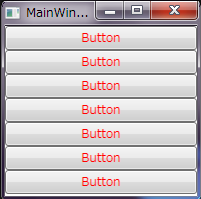
こんな画面があったとして、


    <Grid>
        <StackPanel>
            <StackPanel>
                <Button Content="Button"/>
                <Button Content="Button"/>
                <Button Content="Button"/>
            </StackPanel>
            <StackPanel>
                <Button Content="Button"/>
                <Button Content="Button"/>
                <Button Content="Button"/>
                <Button Content="Button"/>
            </StackPanel>
        </StackPanel>

    </Grid>

リソースに下記を記述する事で、

    <Style TargetType="{x:Type Button}">
        <Setter Property="Foreground" Value="Red" />
    </Style>

全てのボタンの文字色が赤くなります。


アプリケーションの基本スタイルはそれでよいとして、下側のボタンだけ追加設定しようとすると、


    <Grid>
        <StackPanel>
            <StackPanel>
                <Button Content="Button"/>
                <Button Content="Button"/>
                <Button Content="Button"/>
            </StackPanel>
            <StackPanel>
                <StackPanel.Resources>
                    <!-- このスタックパネル内のみ横幅を100にしたい -->
                    <Style TargetType="{x:Type Button}">
                        <Setter Property="Width" Value="100" />
                    </Style>
                </StackPanel.Resources>
                <Button Content="Button"/>
                <Button Content="Button"/>
                <Button Content="Button"/>
                <Button Content="Button"/>
            </StackPanel>
        </StackPanel>
    </Grid>


ボタンの文字色がデフォルト値になってしまいます。基本設定の上に個別設定を施したい場合は次のように書きます。

    <Grid>
        <StackPanel>
            <StackPanel>
                <Button Content="Button"/>
                <Button Content="Button"/>
                <Button Content="Button"/>
            </StackPanel>
            <StackPanel>
                <StackPanel.Resources>
                    <!-- このスタックパネル内のみ横幅を100にしたい -->
                    <Style TargetType="{x:Type Button}" BasedOn="{StaticResource {x:Type Button}}">
                        <Setter Property="Width" Value="100" />
                    </Style>
                </StackPanel.Resources>
                <Button Content="Button"/>
                <Button Content="Button"/>
                <Button Content="Button"/>
                <Button Content="Button"/>
            </StackPanel>
        </StackPanel>
    </Grid>


オープンソースの Themes を適用した場合などによく使います。


2014年4月6日日曜日

[Silverlight][C#]WebClientを同期的に実行する

Silverlight にて HTTP リクエストを簡易的に行う為に WebClient が用意されておりますが、実行すると非同期でリクエストされ、結果は送信した同じスレッド(UIスレッドにて実行したらUIスレッドに合流されているようです)で結果を受信します。

    var client = new WebClient();
    client.DownloadStringCompleted += (sender, e) =>
    {
        // 結果受信処理・・・
    };
    client.DownloadStringAsync(uri);


これを同期的に実行させたければ、1枚ラッピングしてあげればOKです。

    public static class SyncWebClient
    {
        public static string DownloadStrings(Uri uri)
        {
            var autoReset = new AutoResetEvent(false);
            DownloadStringCompletedEventArgs args = null;

            var client = new WebClient();
            client.DownloadStringCompleted += (sender, e) =>
                {
                    args = e;
                    autoReset.Set();
                };
            client.DownloadStringAsync(uri);
            autoReset.WaitOne(30000);

            if (args == null)
            {
                throw new Exception("HTTPリクエストタイムアウト");
            }
            if (args.Error != null)
            {
                throw (Exception)args.Error;
            }
            return (string)args.Result;
        }
    }

OpenFileも同様に実装できますねー。


2013年7月1日月曜日

[Sivlerlight][C#]テンプレートのコントロール取得

カスタムコントロールに限るけど、そのコントロールに割り当てられた Style で設定された ControlTemplate 内にあるコントロールを取得するには。

GetTemplateChild というメソッドに Template 内で定義したコントロールに割り当てられている Name を渡してあげると取得出来る。

ただし、Loaded の時点ではまだテンプレートが適用されていないので、OnApplyTemplate の処理後に GetTemplateChild を Call すると取得出来るようになる。


Silverlight 終了のお知らせ

現時点(2013/7/1)で、Silverlight 5 のデザイナツールは存在しない、、、という話。

Silverlight 5 のデザイナツールとして、「Expression Blend for Silverlight 5」がマイクロソフトから提供されていた。Preview版とはいえ、正式に使えるものだったのだが、使用期限が6/30までで、本日からは使えない。開いてみたら案の定、次のを買えっていうメッセージとともに終了した。

以前、調べた時に、Visual Studio 2012 には Blend が付属するけど Windows ストアアプリ限定だということで、しょうがなく Preview 版を採用したのだけれども、今、調べてみたら春頃にリリースされた VS2012 の Update2 というのを適応することで、WPF4.5/Silverlight5がBlend for Visual Studio で使えるようになったとある。ちなみに今は Update3 までリリースされている。

試しに、Web 用 Visual Studio Express 2012 を入れてみて、既存のプロジェクトを表示してみた。デザイナの UI は2010とは異なり、かなり Blend に近いものになっている。複雑なアニメーションなどがなく、配置程度であればこれで十分だ。しかし、、、画像関係が一切表示されない。どうも、ResourceDictionary に登録した BitmapImage を参照しているところが全部ダメのようだ。ちなみに Express 版には Blend for Visual Studio が含まれない。

さて、製品版の Professional を入れてみた。結果は同じだった。
Update 3を適用し、Blend for Visual Studio で開く。おぉ、UI は Expression Blend 4 とほぼ変わらない。が、こちらも同様に画像が表示されない。

WPF で同じコードを書いてみたら表示されたので、Sivlerlight のときだけダメっぽい。VS2010だと編集はしょぼいけど、表示は出来る。不具合なんだろうけど、、、結構困る。これからデザイナーの方に数百枚のXAMLを書いてもらわなければいけないのに、肝心のデザイナツールが存在しないのだから。手を止めてもらっている。。。

とりあえず  Visual Studio のフォーラムで質問したり、バグ報告を投げてみたりした。サポートに問い合わせたいのだけど、イマイチ問い合わせフォームに辿り着けない。。。

Windows 8 とか Silverlight とか、失策多くないっすか?>Microsoftさん


2013年5月11日土曜日

[Silverlight]CSV出力

Silverlight で CSV データを保存しよう。
たぶん、やり方は2つ。


Silverlight アプリケーションでデータを生成し、ローカル保存するのが1つ目。


    string csvData = "";

    // カンマ区切りの文字列を csvData に設定


    SaveFileDialog dialog = new SaveFileDialog();
    dialog.DefaultExt = ".csv";
    dialog.Filter = "データ | *.csv";
    dialog.DefaultFileName = DateTime.Now.ToString("yyyyMMddHHmmss") + ".csv";
    if (dialog.ShowDialog() == true)
    {
        using (var stream = dialog.OpenFile())
        {
            using (var writer = new StreamWriter(stream, Encoding.UTF8))
            {
                writer.Write(csvData);
                writer.Flush();
            }
        }
    }


CSVファイルの文字コードは shift-jis じゃないと Excel で開いたときに文字化けしてしまう。普通にファイル出力してしまうと、UTF-8 で出力される。とはいえ、Silverlight には標準で shift-jis にサクッと変換するすべは無い。だが、Excel も UTF-8 をサポートしているはずなので、調べてみたところ BOM(Byte Order Mark) が付与されているものであれば、UTF-8 でも開けるとのこと。

BOM を付与するには、StreamWriter の第二パラメータにちゃんと UTF8 ですよってつけてあげればおk。

DefaultFileName を未設定だと、保存ダイアログのファイル名のところが空になってしまい、設定しちゃうと、保存ダイアログ表示前に勝手に確認ダイアログが出るのが気に入らない。
UTF-8 じゃなくて shift-jis で出したい場合は、ちょっと手間だけど次の方法。


サーバーサイドで作ってダウンロードさせる。これが2つ目。

aspx 作って POST で返すのもいいけど、今回はジェネリックハンドラを使う。
まずはサーバーサイド。


    /// <summary>
    /// CsvDownload の概要の説明
    /// </summary>
    public class CsvDownload : IHttpHandler
    {

        public void ProcessRequest(HttpContext context)
        {
            string csvData = "";

            // カンマ区切りの文字列を csvData に設定

            context.Response.ContentType = "text/csv";
            context.Response.AddHeader("Content-Disposition", "attachment;filename=" + DateTime.Now.ToString("yyyyMMddHHmmss") + ".csv");
            context.Response.ContentEncoding = System.Text.Encoding.GetEncoding("shift-jis");
            context.Response.Write(csvData);
        }

        public bool IsReusable
        {
            get
            {
                return false;
            }
        }
    }


これで、CsvDownload.ashx をクライアント側から呼び出すだけでおk。

呼び出し方はいくつかあって、Silverlight アプリケーションから直接呼び出す場合は、WebClient クラスを使ってバイトデータを読み出したあとに、1つ目と同じ方法で保存する。

javascript 側からリクエストする方法もいくつかある。
流れはjsにリクエストさせる為のメソッドを用意して、Silverlight側からCALLする。


☆js側

    <script type="text/javascript">
        function getCsv() {
        }
    </script>


☆SL側

            HtmlPage.Window.Invoke("getCsv");


getCsv の中でHTTPリクエストをやるんだけど、まずは一番かっちょわるいやりかた。
新規Window作ってそこからリクエストする。


            var w = window.open("CsvDownload.ashx", "csv", "width=1,height=1", null);
            w.onload = function () {
                w.close();
            };
            self.focus();

Windowが見えるのはやだよね。
これを回避する為には隠しiframeを使う。

            var iframe = document.createElement("iframe");
            if (iframe != null) {
                iframe.style.display = "none";
                iframe.onload = function () {
                    document.body.removeChild(iframe);
                }
                document.body.appendChild(iframe);
                iframe.src = "CsvDownload.ashx";
            }


ほかにも jQuery の ajax 使うのとか色々ありそうだけど、キリが無いので今日はここまで。